
Click here for a complete list of All About Symbian's Nokia 5800 XpressMusic tutorials
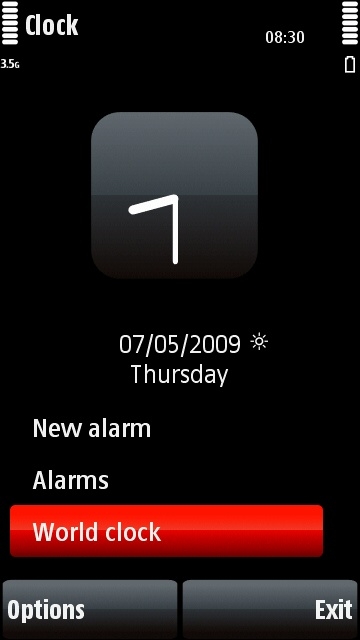
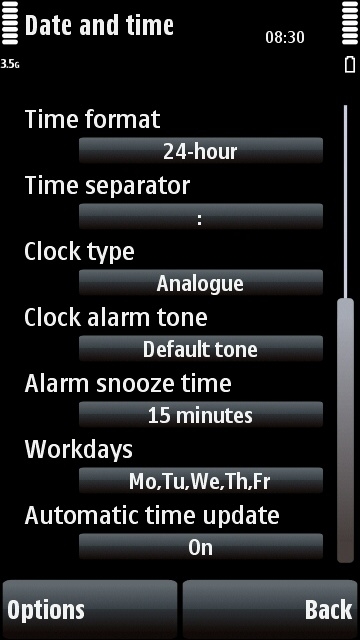
The Nokia 5800's Clock application and its settings page
Hints and tips for using the clock and alarm clock on the Nokia 5800 XpressMusic
The 5800's Clock application displays the time in the phone's interface and also lets you set multiple alarms which can be made to repeat automatically.
How to alter the clock's settings
You can access the Clock application by touching the clock on the phone's screen. You can alter all of the Clock application's settings by opening the Clock app, then selecting "Options", then selecting "Settings".
How to set the time and date automatically on the 5800
Most mobile phone networks let you automatically set the phone's clock to the current local time and date. You can switch this feature on on the 5800 using the following method:
1. Touch the phone's clock to open the Clock application.
2. Select "Options".
3. Select "Settings".
4. Select "Automatic Time Update" and make sure it is set to "On".
How to set an alarm on the 5800
You can set as many alarms as you want. Here's how to set one, just repeat the process below if you want to add more alarms.
1. Touch the phone's clock to open the Clock application.
2. Select "New Alarm".
3. Fill in the time.
4. Just leave the name as "Alarm", or add a different name if you prefer.
5. Select how often the alarm should go off from the options available:
- Not Repeated: Alarm activates once.
- Within 24hrs: Alarm activates once. (Yes, we know this is the same as the "Not Repeated" option. Obviously a design mistake there by Nokia...)
- Daily: Alarm activates at the same time every day.
- Workdays: Alarm activates at the same time on every workday. You can set which days of the week are workdays from the Clock application's Settings section (see above for how to access Clock's settings).
6. Select "Done" when the alarm is ready.
You can see a list of all upcoming alarms by selecting the "Alarms" option on the Clock application's front page.
How do I change the alarm tone?
Go to the Clock application's settings page as described earlier in this article, and select the section labelled "Clock Alarm Tone". You will then be able to choose an alarm tone from all of the sound files and music tracks stored on the phone.
How do I set alarms for particular dates?
You can set an alarm for a particular time on a particular date by using the 5800's Calendar application. You'll find this on the phone's main menu screen.
The Clock application is mainly intended for waking you up, whereas Calendar is more advanced and lets you set alarms for appointments, events, meetings etc.
We will be covering how to use the Calendar application in a future tutorial.
How do I alter the amount of snooze time?
To alter how long the snooze function lasts, go to the same Clock settings menu as everything else listed above. To access the snooze settings, open the Clock application, select "Options", then "Settings" and you'll see an option called "Alarm Snooze Time". Click on it to alter how long snooze lasts.
How do I alter the amount of booze time?
Try varying how long you spend in the pub, and perhaps consider ordering an orange juice instead.
How do I switch an alarm off?
There are two ways to switch off an alarm on the 5800: you can select the stop option from the screen when the alarm sounds, or you can physically just turn the phone over. The 5800 has a motion sensor within it so if you turn the phone upside down when the alarm sounds it will go into snooze mode.
This alarm turning option can be switched off by doing the following: Go to the phone's main menu by pressing the white button, select "Settings", select "Phone", select "Sensor Settings", select "Turning Control", then remove the tick from the "Snoozing Alarms" box and click "OK".
Click here for a complete list of All About Symbian's Nokia 5800 XpressMusic tutorials